
Create
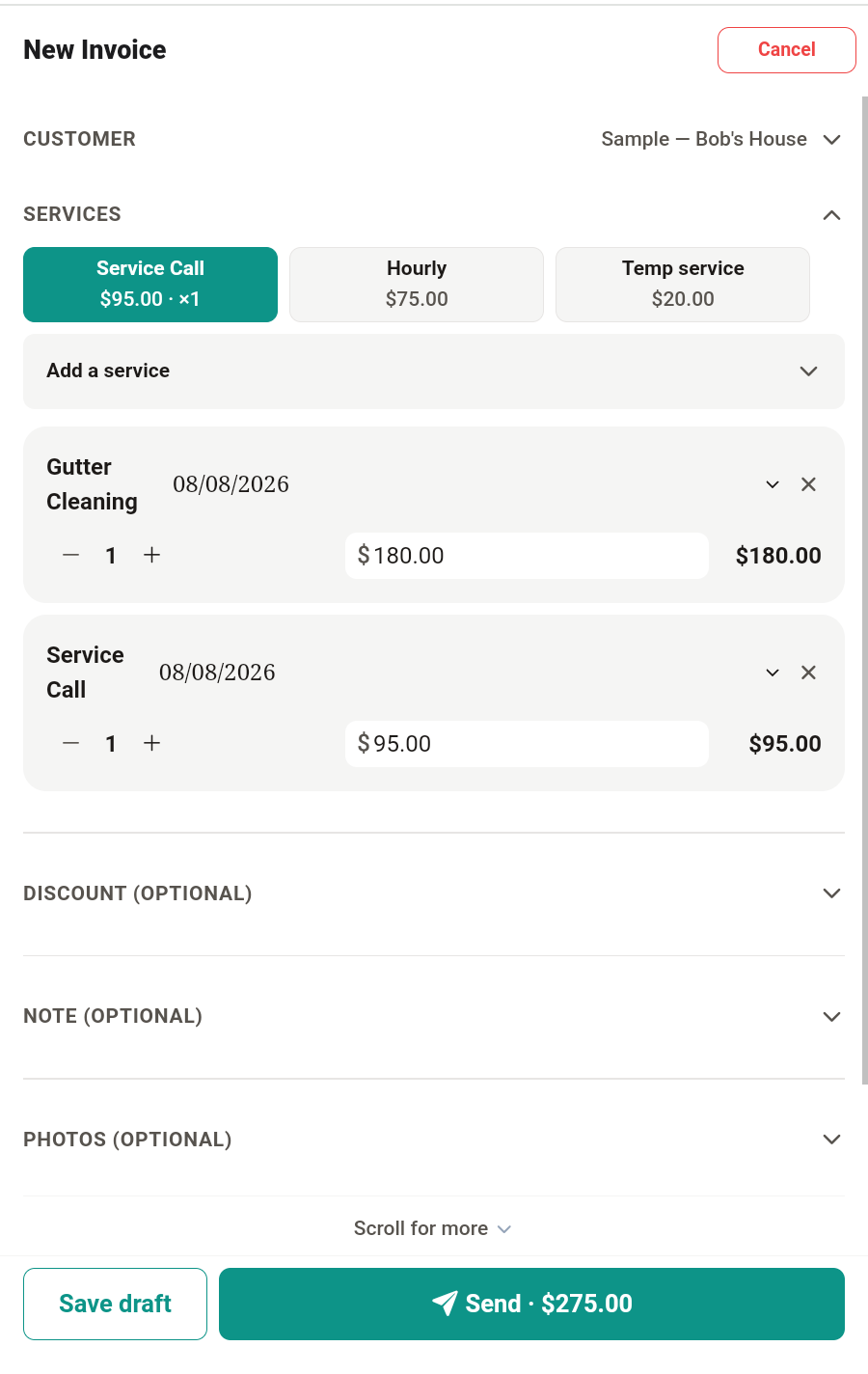
Choose your customer, add the work, and confirm the amount.
How it works
TabEagle's whole job is to let you finish the paperwork while you're still standing on the job site. Here is the entire flow — there is no step four.
Choose your customer, add the work, and confirm the amount.
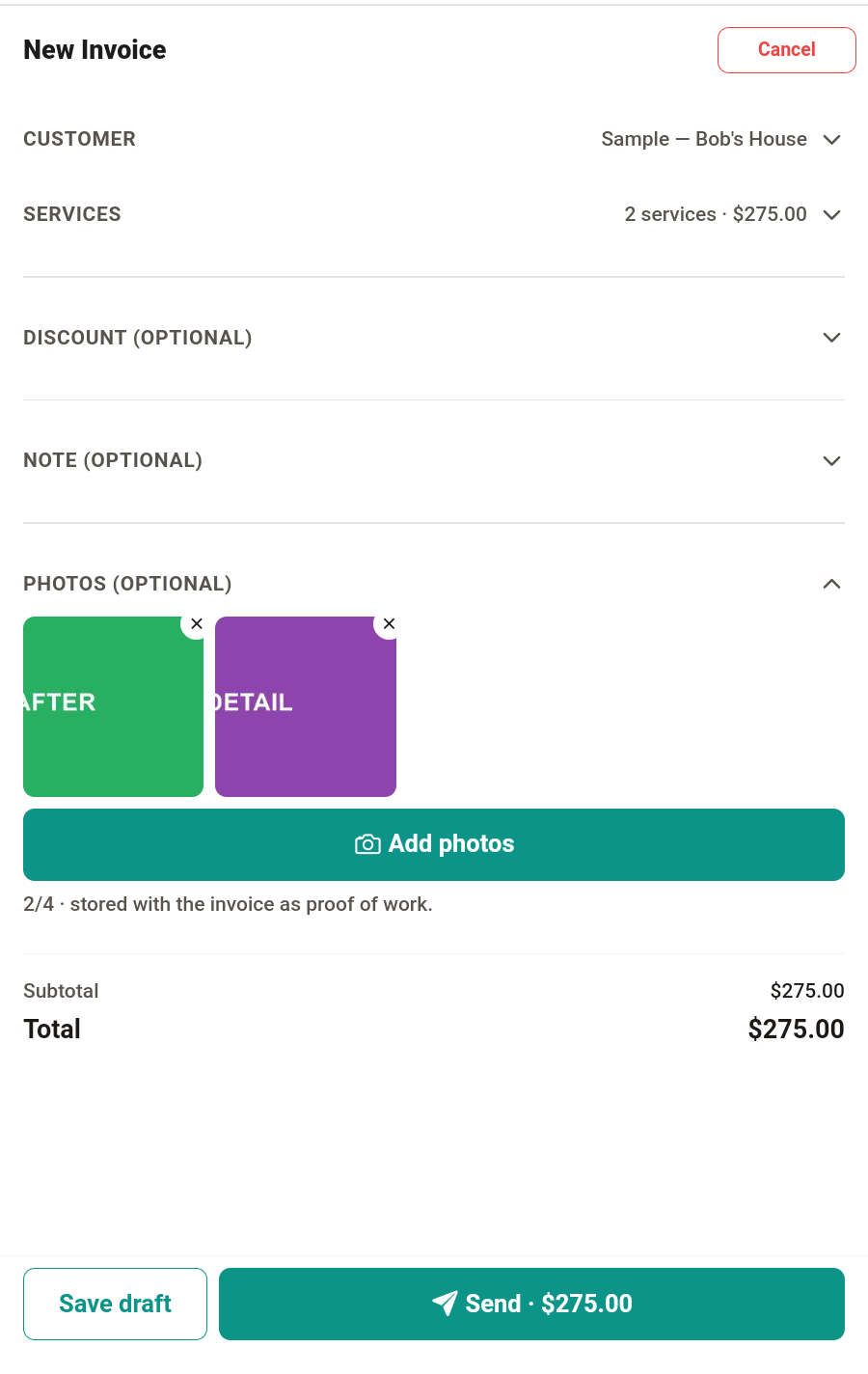
Include notes and job photos so your customer can see what was completed.
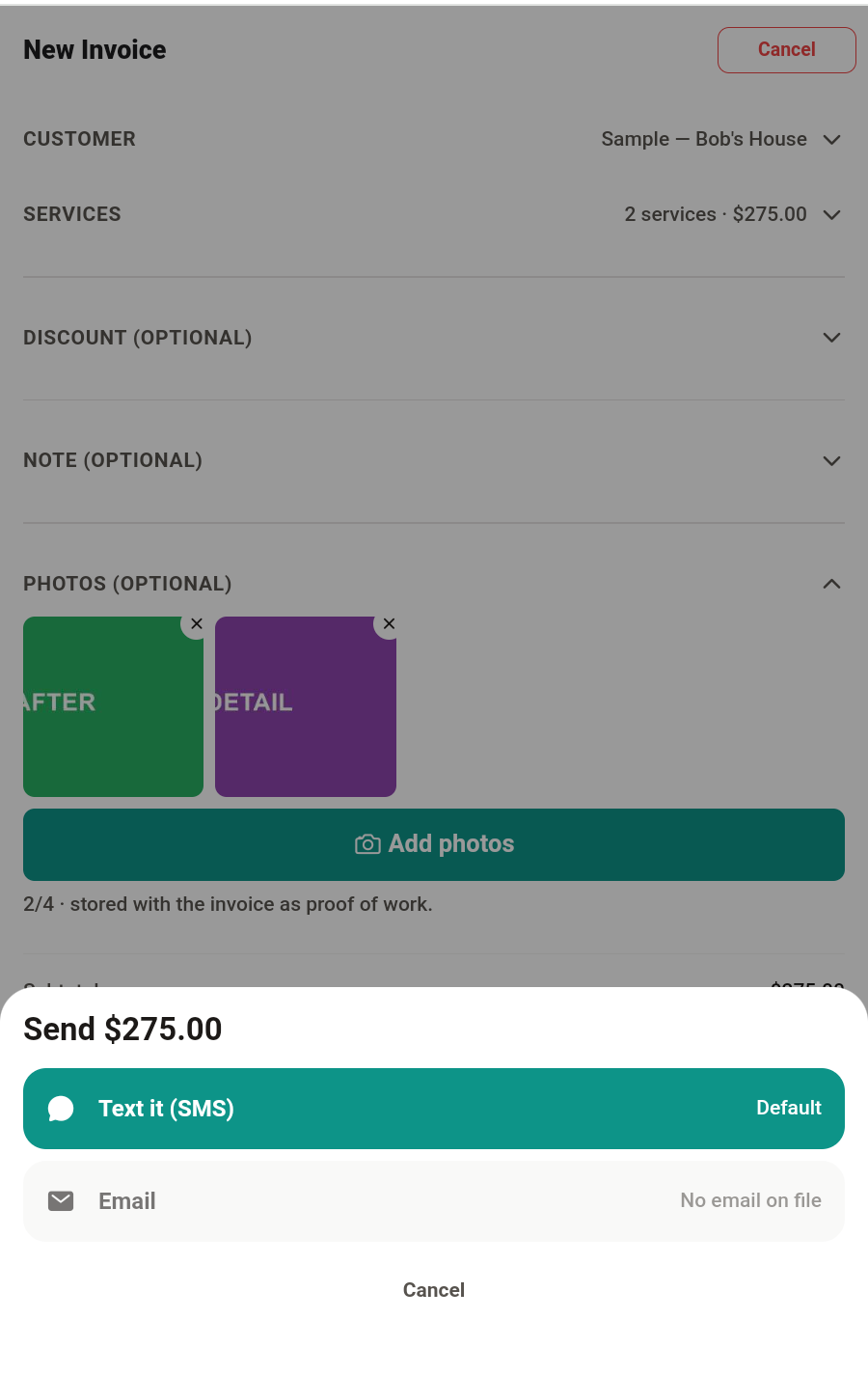
Send one link your customer can open and pay without downloading TabEagle.
Then, on your customer's phone
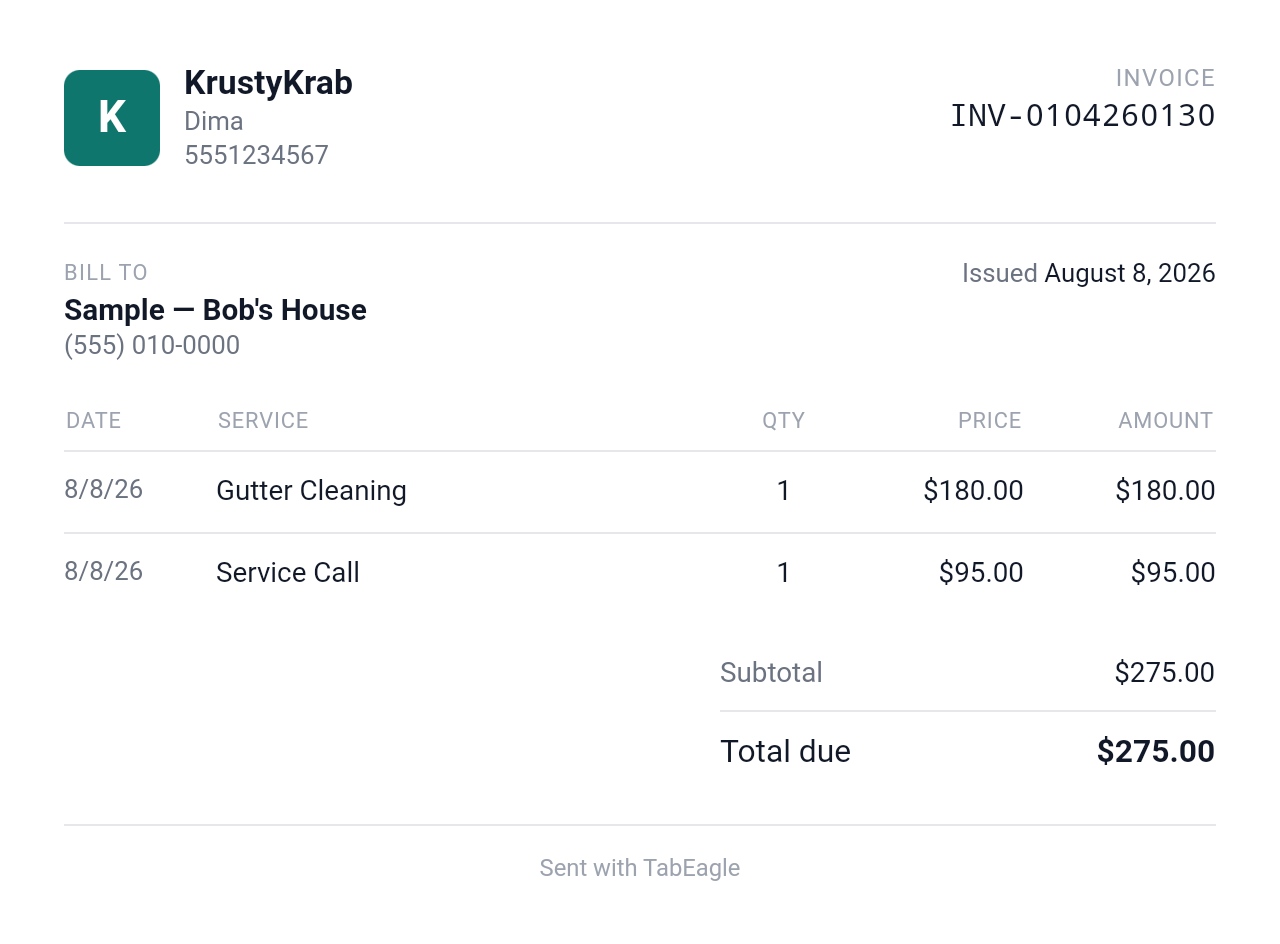
Your customer taps one link and sees a clean page with everything they need — no account, no app download.
A few useful details
If you revise the invoice or it gets paid, the same link shows the up-to-date state — your customer never looks at a stale copy.
Quote first when the job needs it. An accepted estimate converts to an invoice, and you can request a deposit against it.
Sent, paid, or overdue — the invoice list shows where every job stands, with each customer's history behind it.
Download a PDF or image of any invoice for records, email attachments, or the customer who wants a printout.